Getting started
Workspaces and your team
A workspace is your team's home in SpudSuite. Everything lives in one: pages, projects, channels, plans, agents and the people who use them. You can belong to as many workspaces as you like, such as one for work and one for your book club.
Plant a workspace
When you sign up, SpudSuite asks for your name, a colour, and a name for the workspace (usually your team or company). Choose Create workspace and you'll land on a welcome page in your first space.
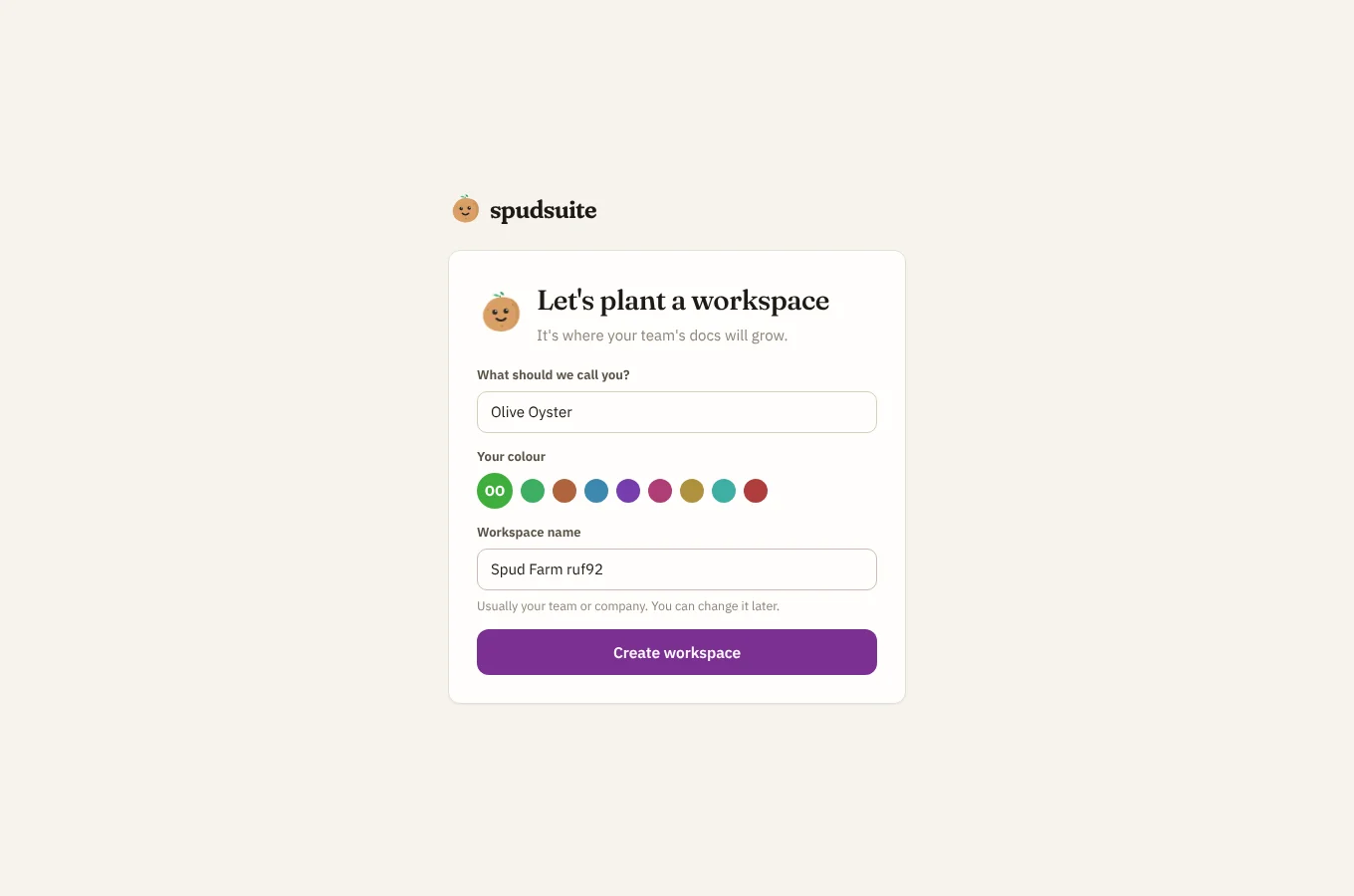
To make another one later, open the workspace menu (the workspace's name at the top left) and choose New workspace.
Switch workspaces
Open the workspace menu at the top left and pick one. Each workspace has its own address, such as docs.spudsuite.com/acme, so you can bookmark them too.
Invite people
Anyone except a guest can invite people.
- Choose Invite people from the workspace menu, from Settings › People, or from the command palette (Ctrl K).
- Either type their email addresses and choose Send invitations, or choose Get an invite link to copy a link you can share however you like.
- Pick the role they'll join with.
Emailed invitations last two weeks. An invite link can be used by several people until someone withdraws it. Open invitations are listed under Settings › People, where you can copy or withdraw them.
Roles
| Role | What they can do |
|---|---|
| Owner | Everything, including deleting the workspace and making other owners. |
| Admin | Manage people, spaces and settings. Can always see every space and page, so nothing gets locked away. |
| Member | See and edit every open space, and join private spaces they're added to. Create pages, projects, channels and plans. |
| Guest | Only sees the spaces they're added to. Can follow along in Factory but not steer, and can look at plans but not change them. |
Admins change roles under Settings › People. See People and roles for more.
Join a workspace
Open the invitation email or link. If you're not signed in yet, choose Sign in to join and sign in with the same email. Then choose Join. If the invitation has gone soft (expired or withdrawn), ask whoever sent it for a new one.
Leave a workspace
Go to Settings › People and choose Leave next to your own name. You'll need a new invitation to come back.