Getting started
Signing in and your account
SpudSuite signs you in with a code sent to your email, so there's no password to remember. You can add a password or use Google too, if you'd rather.
Sign in or sign up
- Go to SpudSuite and choose Sign in.
- Type your email address and choose Email me a code.
- Check your inbox. Type the six-digit code into SpudSuite, or tap the button in the email.
The same steps sign you up if you're new: after the code, SpudSuite asks your name and helps you plant a workspace.
If the code has expired or the link in the email has wilted, choose Send again for a fresh one. Codes only work once.
Sign in with a password
Once you've set a password (see below), choose Use a password instead on the sign-in screen. An emailed code always works too, so you can't be locked out by a forgotten password.
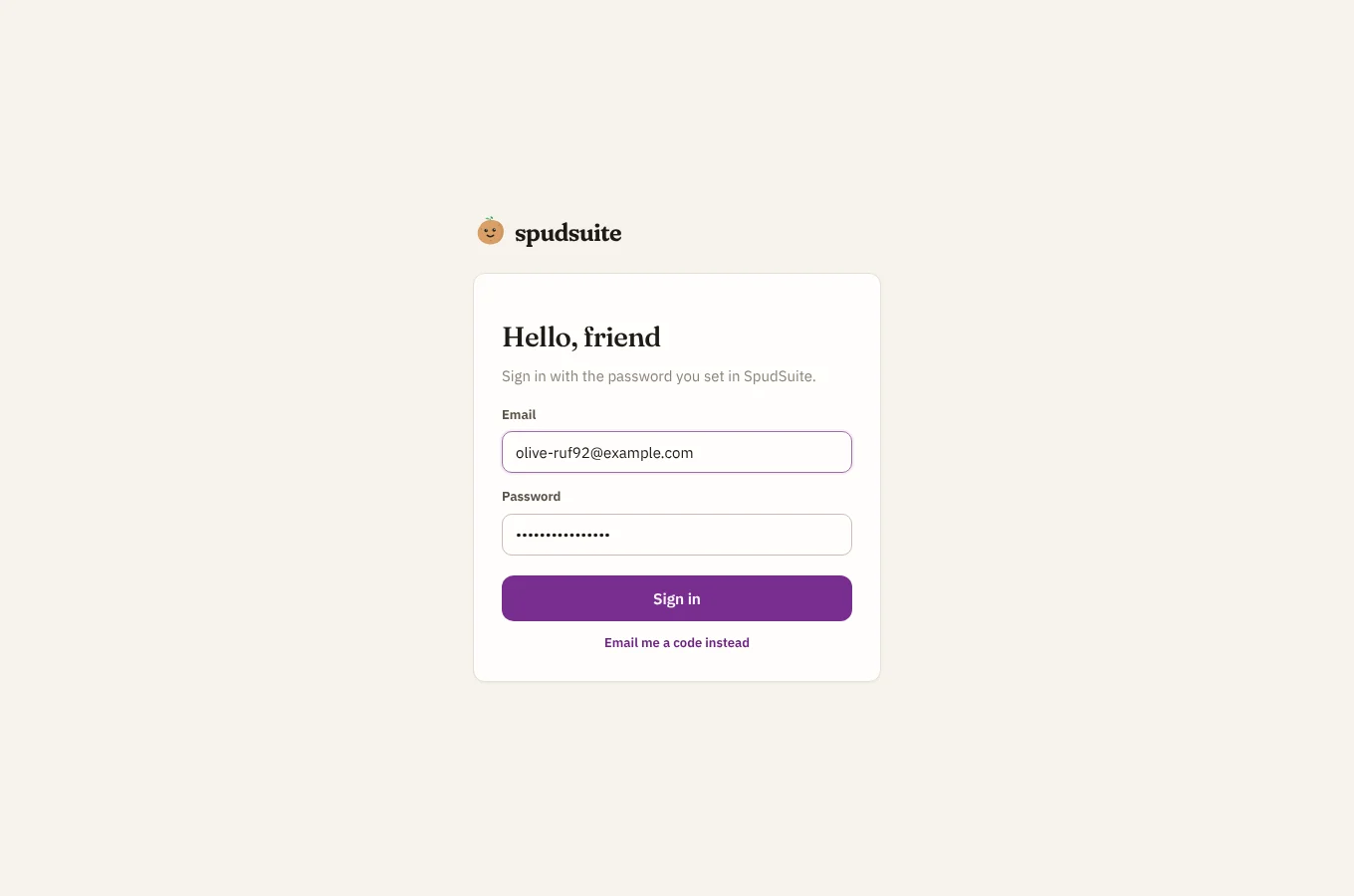
After ten wrong passwords in a row, password sign-in pauses for 15 minutes. Signing in with an emailed code in the meantime lifts the pause.
Sign in with Google
When your SpudSuite has Google sign-in turned on, the sign-in screen shows Sign in with Google. It finds your account by your Google address, so if you first signed up with an emailed code you can carry on with Google using the same email.
Your profile
Open your avatar in the top right corner and choose Profile and Pro.
- Name: how teammates see you in pages, issues and chat.
- Avatar: pick a colour, or tap the avatar to choose an emoji.
- Email: shown for reference. It's the address you sign in with.
Set or change a password
In Profile and Pro, under Signing in, type a password of at least 10 characters and choose Set password. To change it later, type your current password and the new one.
Spud Pro
Spud Pro raises the upload limit from 10 MB to 100 MB per file and gets new features first. Paid plans are on their way. If you've been given an unlock code, type it under Spud Pro in Profile and Pro and choose Unlock.
Light or dark
Choose the moon or sun in the top bar (or Dark mode in your account menu). Your choice follows you across every SpudSuite product on this device.
Sign out
Open your avatar and choose Sign out. It signs you out of every SpudSuite product in this browser.