Projects
Projects and issues
Projects is where your team tracks work. Each project holds its issues: the tasks, bugs, stories and epics that need doing. Every issue has a key, like HARV-12, that you can type anywhere in SpudSuite to link to it.
Make a project
Choose + next to Projects in the sidebar, or Create › Project. Give it a name, such as Website, Mobile app or Spring planting, and a short key of a few letters. Issues in the project are numbered with it: HARV-1, HARV-2 and so on.
File an issue
- Choose New issue at the top of the project, or press c.
- On the board, choose + at the top of a column to add one straight into that status.
- From anywhere, choose Create › Issue.
Give it a title and, if you like, a type, a template (see Workflow, fields and templates) and the other details below. You can fill those in later.
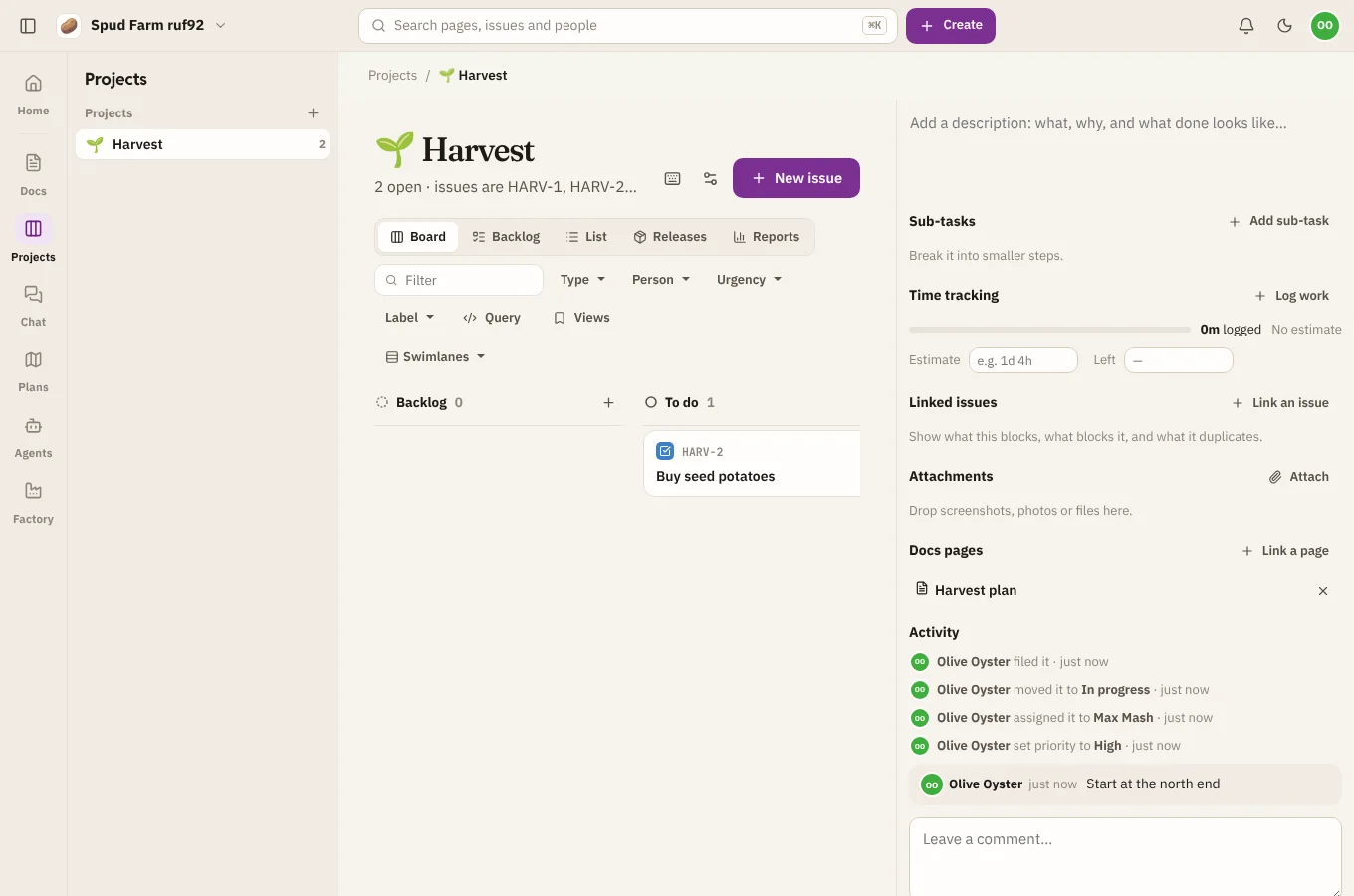
An issue's details
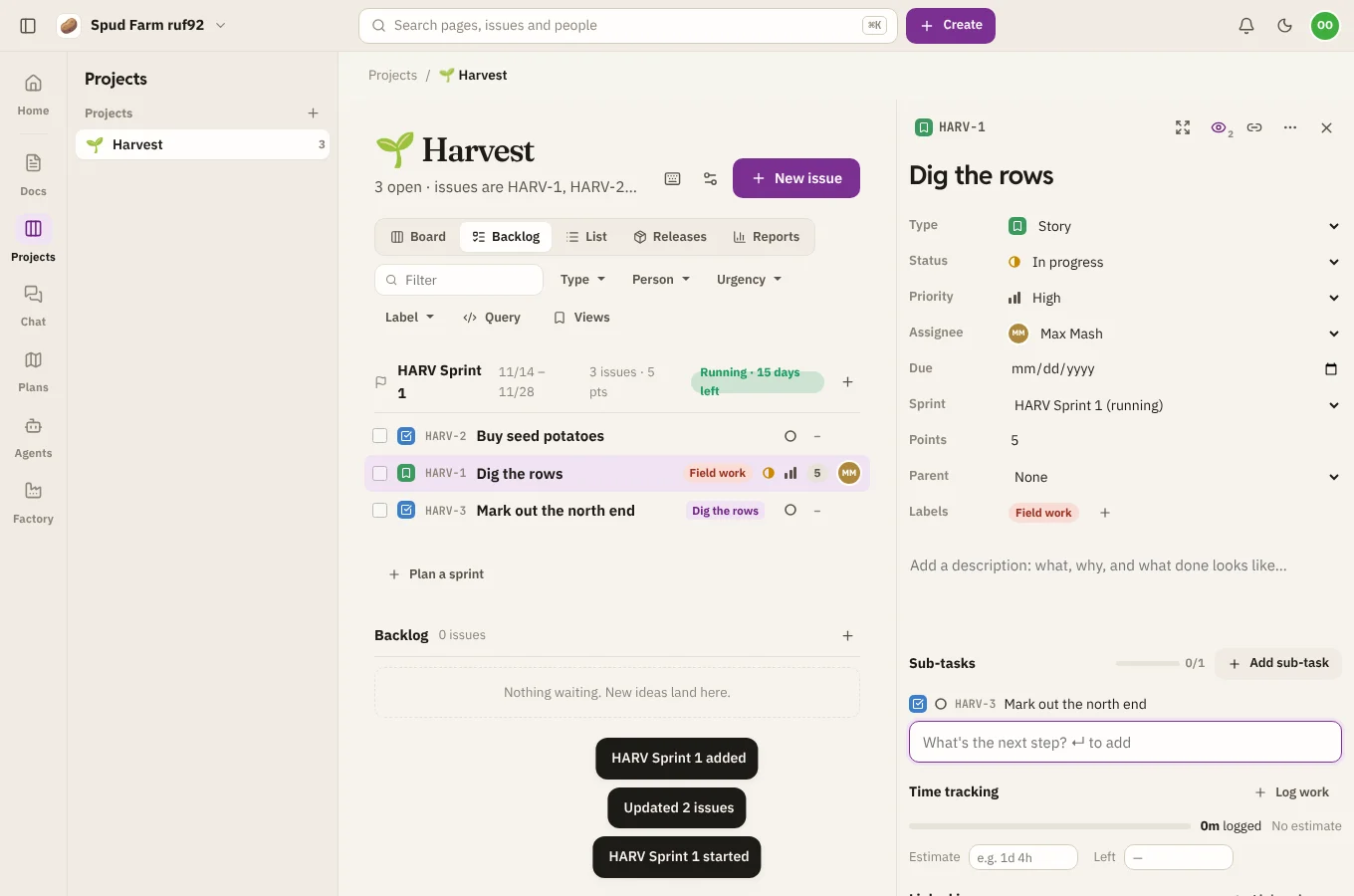
| Detail | What it's for |
|---|---|
| Type | Task, Bug, Story or Epic |
| Status | Where it is in the project's workflow, such as To do, In progress or Done |
| Priority | Urgent, High, Medium, Low, or none |
| Assignee | Who's doing it. Press i to take an open issue yourself. |
| Labels | Words to group and filter by |
| Due date | When it should be done |
| Sprint, Points | Planning: see Sprints, estimates and reports |
| Release, Components, time tracking | See Releases, components and time |
| Custom fields | Any fields your project adds: see Workflow, fields and templates |
Write the description in the box under the title: what, why, and what done looks like. Everything that changes on an issue is kept in its Activity, with who did it and when.
Epics and sub-tasks
- An epic groups stories, tasks and bugs under one bigger piece of work. Open an epic to see its issues and how far along they are. Set an issue's Parent to put it in an epic.
- Sub-tasks break an issue into smaller steps. Choose Add sub-task on an issue, type a title and press ↵.
Epics also show up as bars on roadmaps in Plans.
Comments and watching
Leave a comment at the bottom of an issue (press m to jump there). Type @ to mention someone. Choose Watch to hear about comments and changes on an issue in your inbox. You hear about issues assigned to you anyway.
Link issues and pages
- Linked issues: show what an issue blocks, what blocks it, what it relates to and what it duplicates, across any project. Each link reads the right way round from both ends.
- Docs pages: choose Link a page to connect the spec, the plan or the notes. The link shows on the page too.
- Type an issue key, like
HARV-12, in a page, a comment or a chat message and it becomes a link.
Attach files
Drop screenshots, photos or files onto an issue, or choose Attach files. Files can be up to 10 MB each (100 MB with Spud Pro).
Delete an issue
Choose Delete issue from the issue's ⋯ menu. Its comments and history go too, and this can't be undone, so if it's simply not happening, moving it to Cancelled keeps the record.