Chat
Messages, threads and files
Write in the box at the bottom of a conversation and press ↵ to send. Shift ↵ starts a new line.
Mention someone
Type @ and a name to mention a teammate. They hear about it in their inbox. @channel tells everyone in the channel, so save it for things that matter.
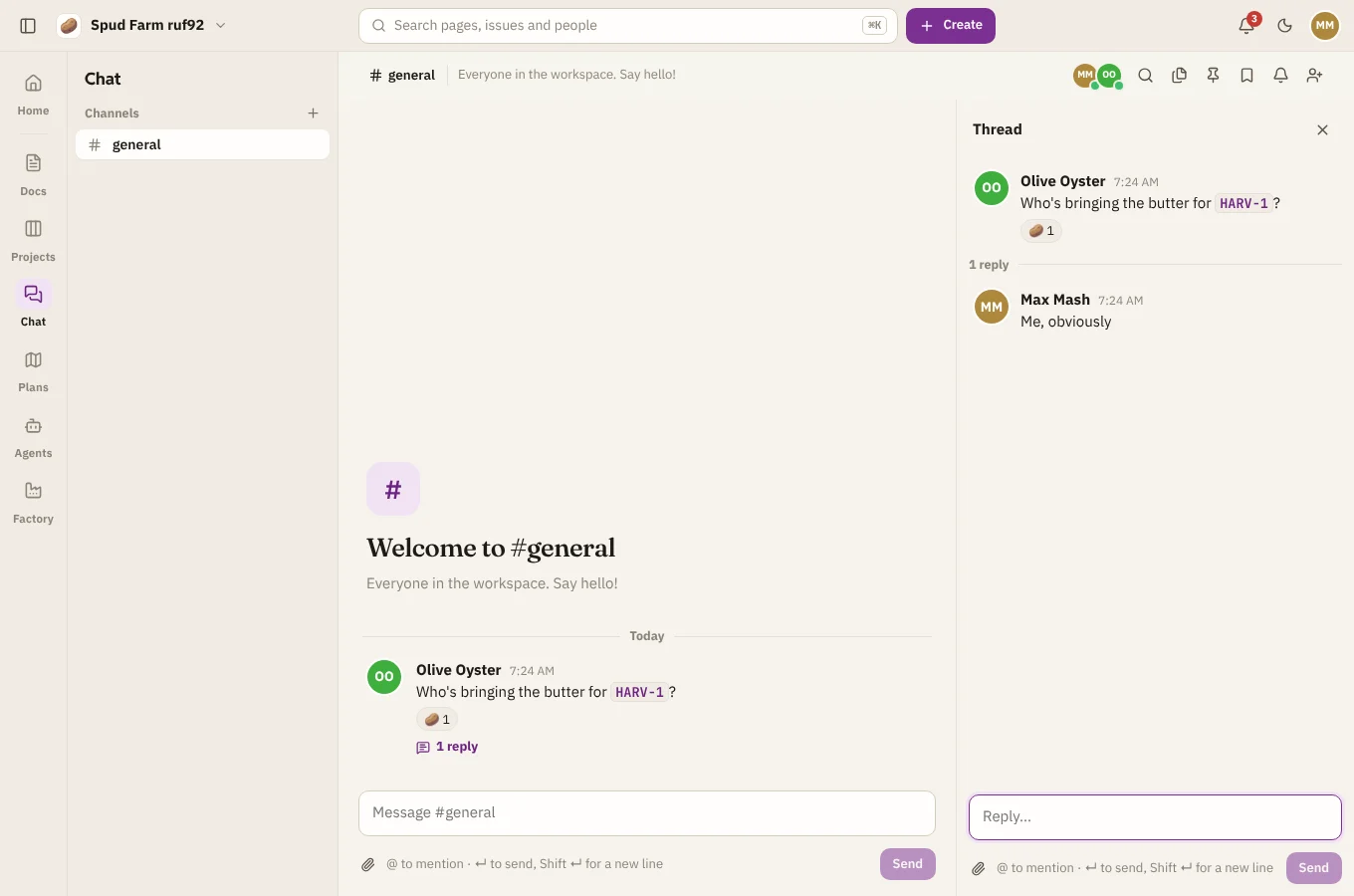
Threads
Hover a message and choose Reply in thread to answer it on the side, without filling the channel. Threads open next to the conversation. You hear about replies to threads you've written in.
Reactions
Hover a message and choose the smiley to react. Choose a reaction under a message to add yours to it.
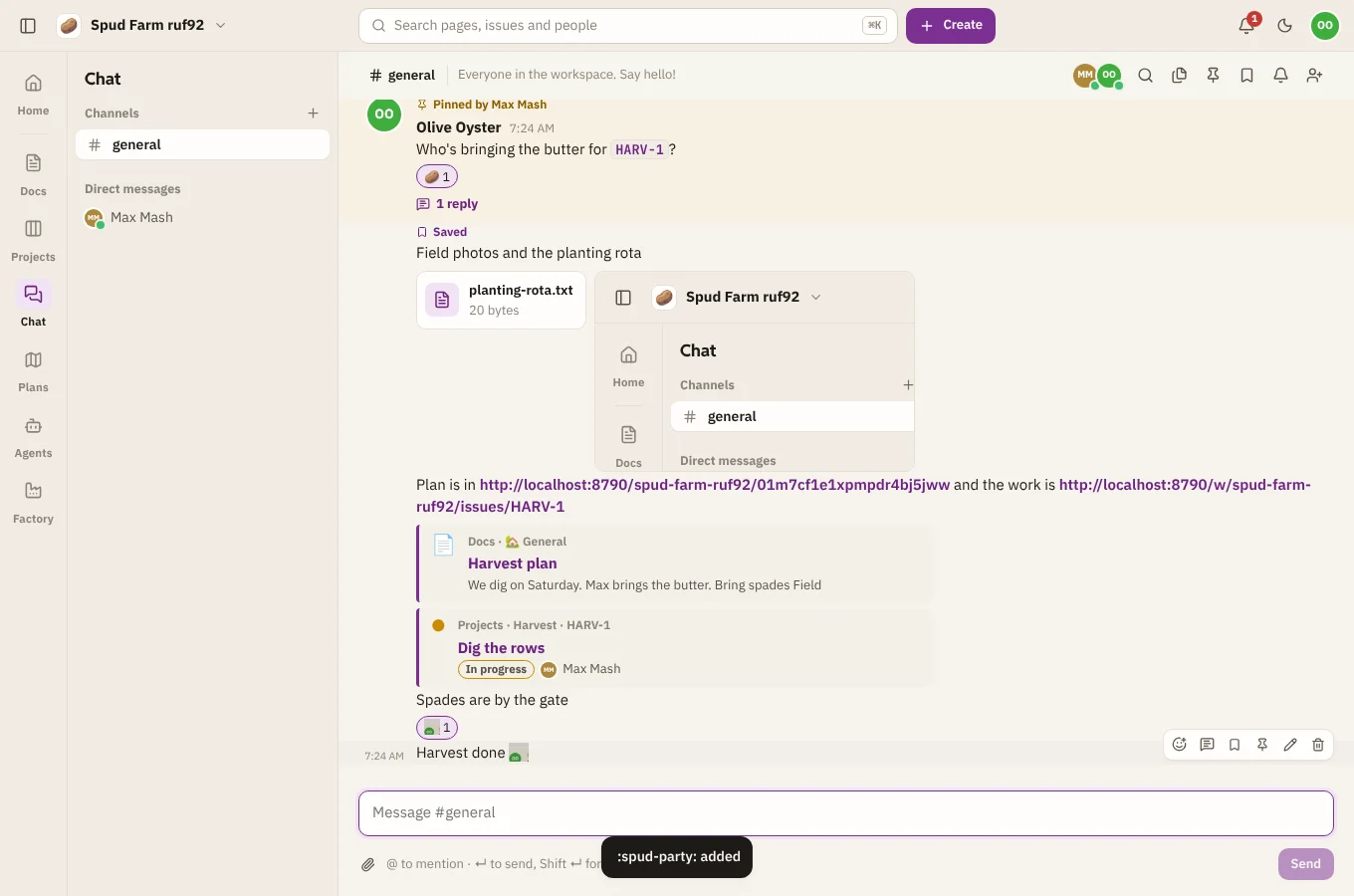
Your team's own emoji
Add your workspace's own emoji from the emoji picker: choose Add emoji, upload a square image (PNG, GIF, WebP or JPEG, up to 256 KB) and give it a name. Use it as a reaction or type :name: in a message.
Edit and delete
Hover your own message and open its ⋯ menu to Edit message or Delete message. Edited messages say so. A deleted message goes for everyone and can't be brought back.
Files and images
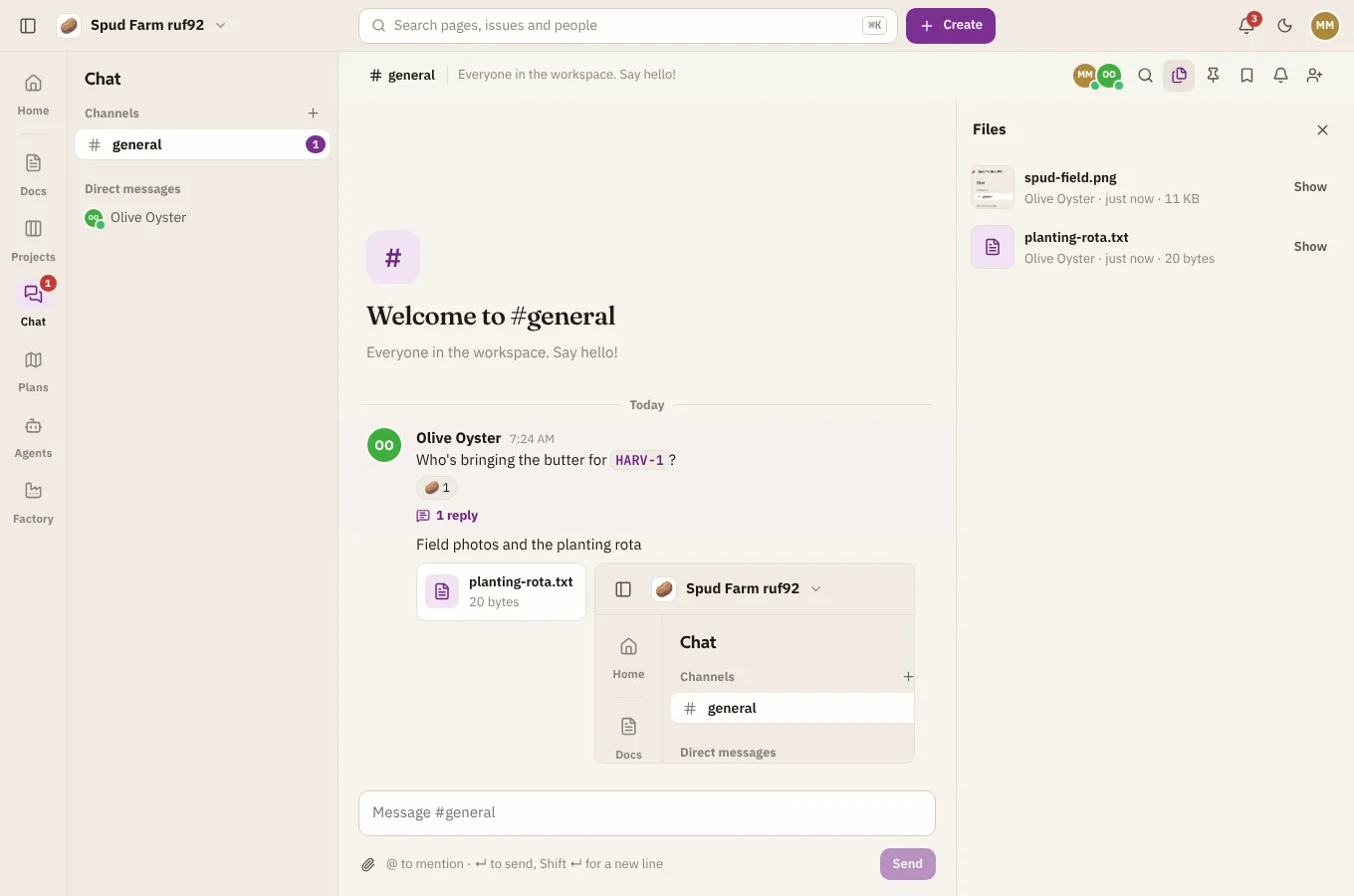
Attach files with the paperclip, or paste or drop them into the conversation. You can share up to 10 files in one message, each up to 10 MB (100 MB with Spud Pro). Images show in the conversation.
Choose Files at the top of a conversation to see everything that's been shared in it.
Links
- Links to web pages show a preview. Remove a preview from its corner if it's not helpful.
- Links to Docs pages and Projects issues preview what each reader is allowed to see.
- Issue keys like
HARV-12turn into links to the issue.