Agents
The workflow builder
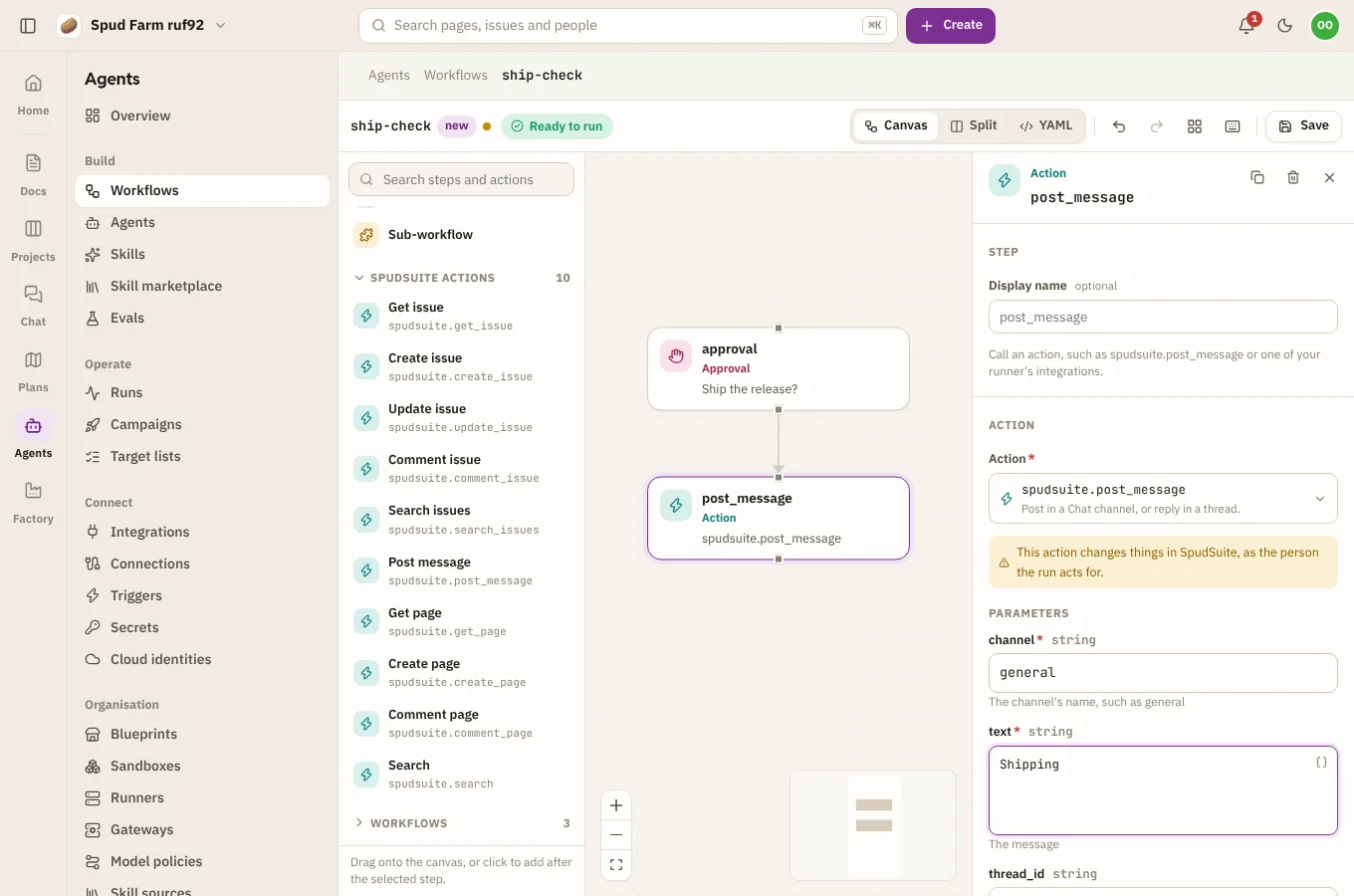
Build a workflow on a canvas instead of typing YAML. Open a workflow from Workflows, or choose New workflow, and the builder opens with three parts: a palette of steps on the left, the steps in the middle, and the selected step's settings on the right.
Add and connect steps
- Drag a step type (agent, action, script, approval, wait and the rest) or a SpudSuite action (such as post a message or create an issue) from the palette onto the canvas.
- A step runs after the one before it unless you connect it differently. Drag from one step to another to say it needs that step; steps with no path between them run side by side.
- Select a step to fill in its settings in the inspector. Each type has its own form, with the action's parameters and what it returns.
See Writing workflows for what each step type does and how expressions like {{ steps.triage.output.summary }} pass data between steps.
Checks as you go
The builder checks the workflow while you work and lists what needs fixing before you save: an action that doesn't exist, a required setting left empty, a step that uses another step's output before it can have run, or steps that wait on each other in a loop. SpudSuite also runs its own checks a moment after you stop typing, so the builder never disagrees with what a save would accept.
YAML, any time
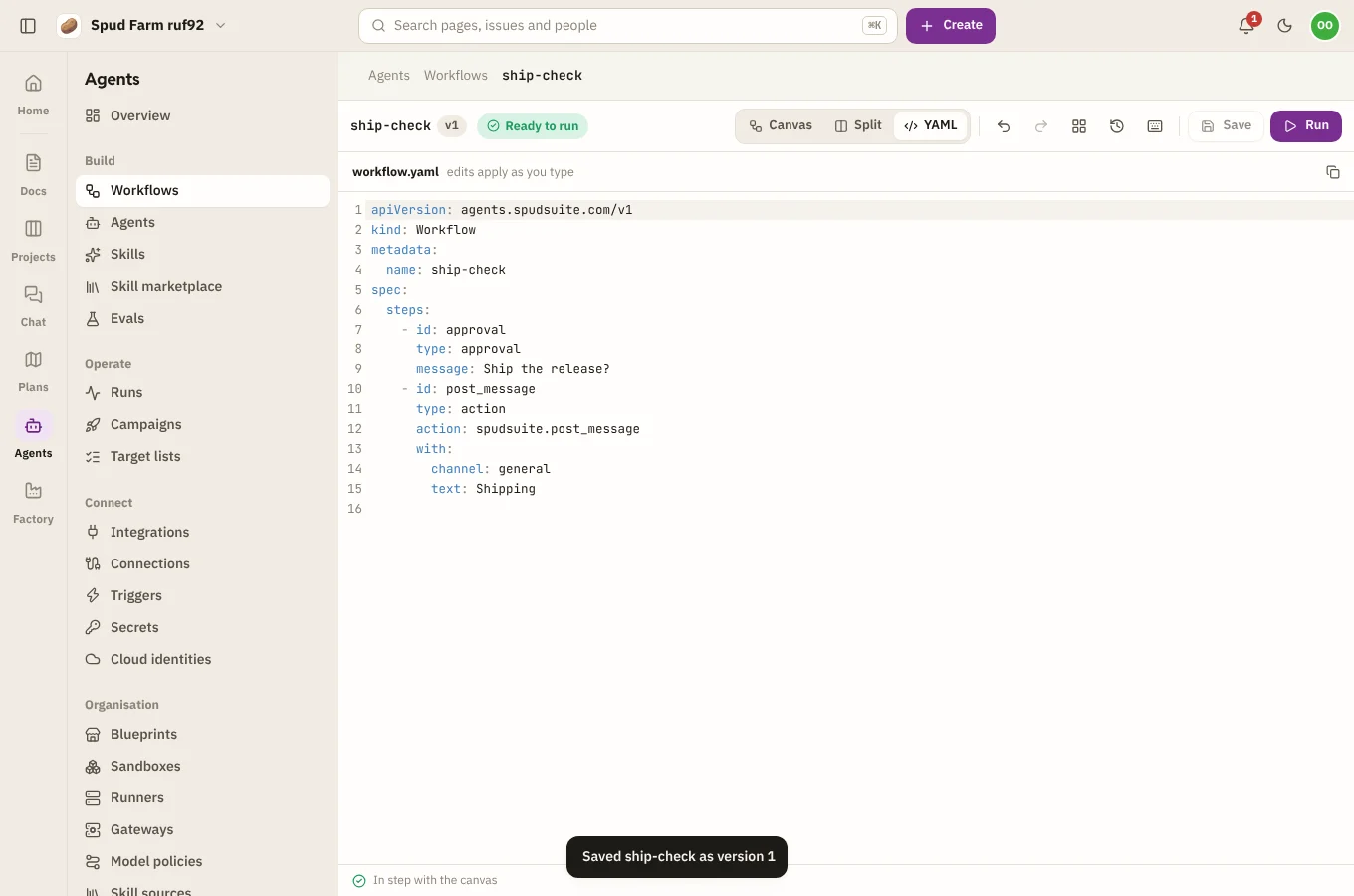
Choose YAML to see the workflow as text, exactly what runners get. Edits there change the canvas too. Where the steps sit on the canvas is kept separately, so moving boxes around never changes the workflow itself.
Save and versions
Save with Save or Ctrl S (⌘ S), with an optional note about what changed. Every save that changes the workflow is a new version; runners pick it up straight away. Moving steps around without changing them doesn't make a new version.
If someone else saved the workflow since you opened it, the builder tells you who, and asks before overwriting their work. An open builder also notices newer versions saved elsewhere.
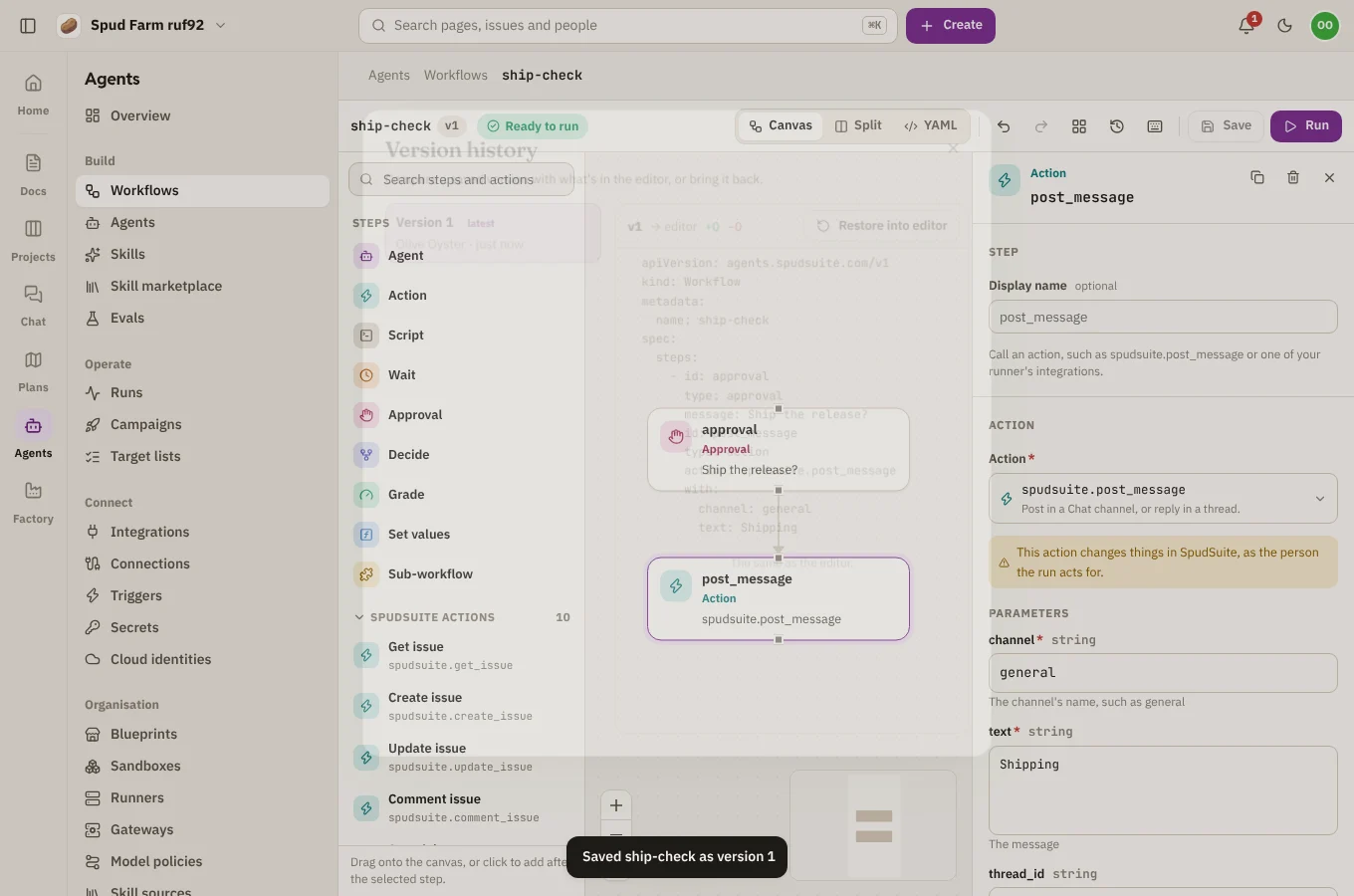
Version history lists every version with who saved it. Pick one to see how it differs from what's in the editor, and Restore into editor to bring it back (save to keep it).
Run it
Save first, then choose Run to start the workflow with a form for its inputs. The run happens on one of your runners, never in SpudSuite, and the builder takes you to the run page to watch it. See Runs, approvals and signals.