Projects
Releases, components and time
Group work into releases with dates, tag issues by the part of your product they touch, and keep track of the time work takes.
Releases
Open the Releases view in a project.
- Type a name, such as "1.0" or "Spring harvest", and a release date, then choose Add release.
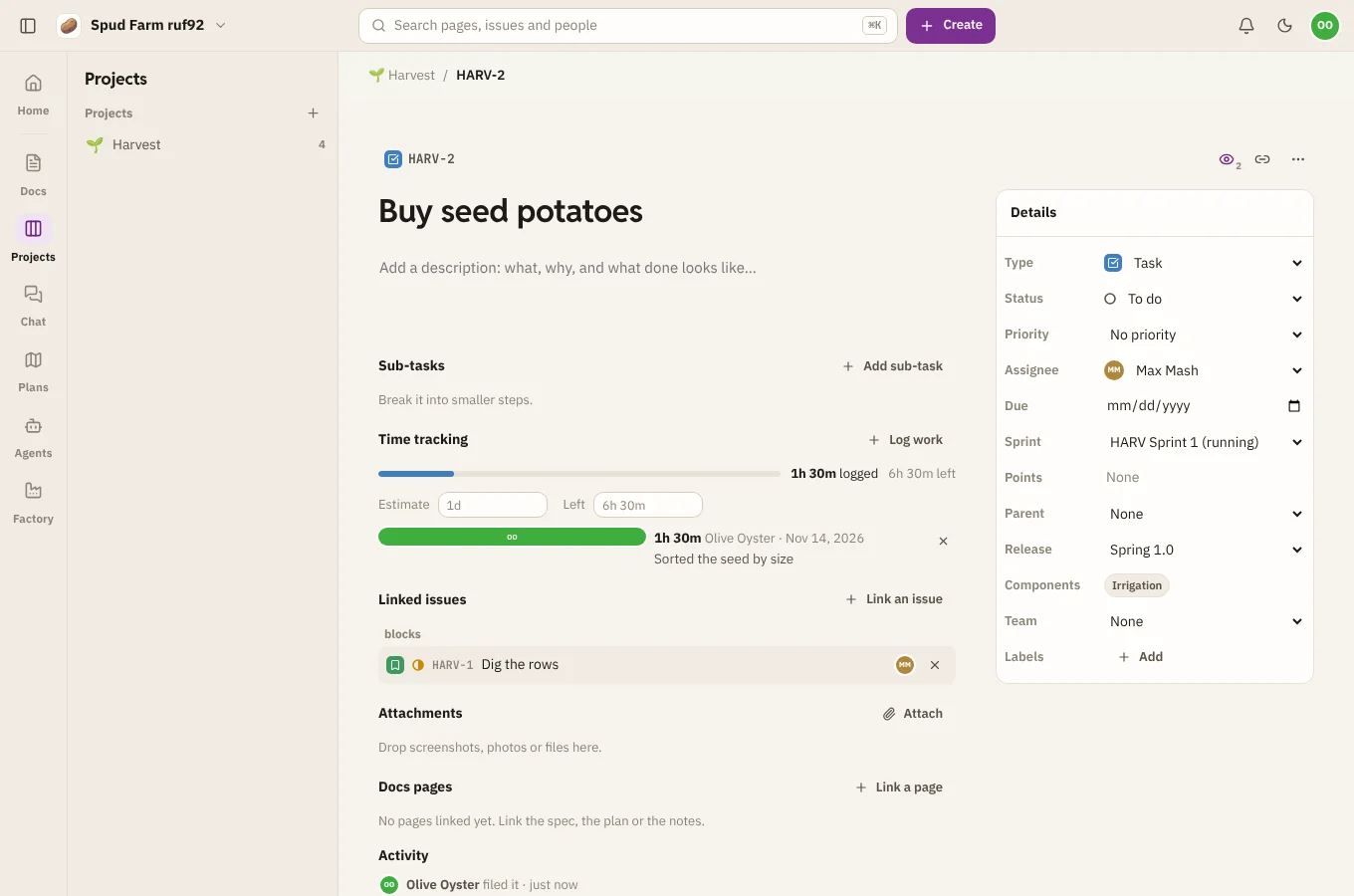
- Set each issue's Release in its details (or in bulk from the list).
- Watch the release's progress bar fill as its issues are done.
- When it's ready, choose Release. Pick where any unfinished issues move: another release, or none.
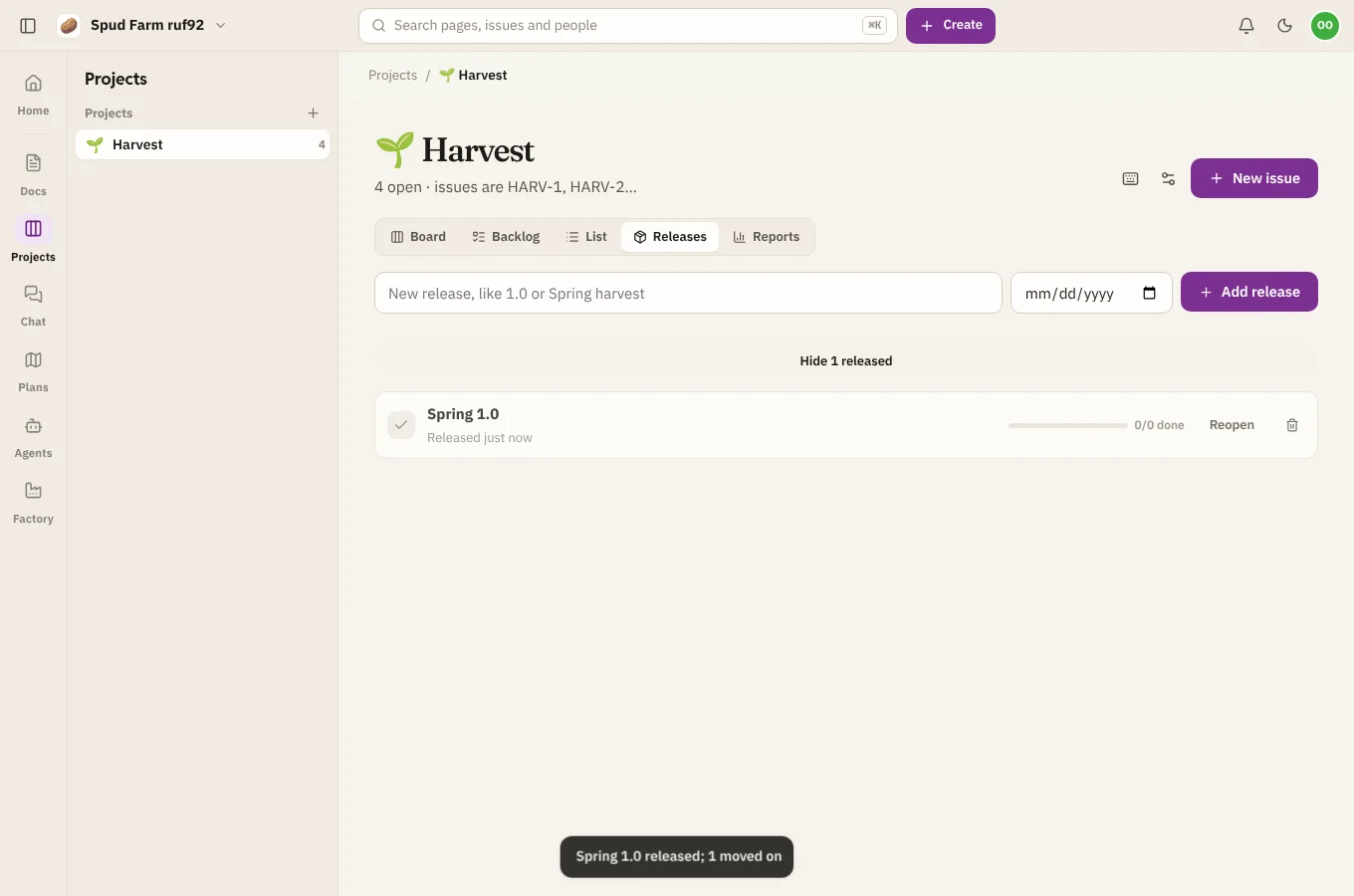
A released version shows when it shipped, and can be reopened. Filter the board by release to focus on what's going out next.
Components
Components are the parts of what you make: the app, the website, the irrigation. Add them under Project settings › Components, and give each an optional lead. Tag issues with components to see work by part. A new issue in a component with nobody assigned goes to the component's lead.
Time tracking
Each issue has an original time estimate and the time left, in the usual units: 30m, 2h, 1d (8 hours) and 1w (5 days).
To record work, choose Log work on an issue. Say how long it took (like 1h 30m), the day you did it, and optionally what you did and how much is left. The issue shows time spent against the estimate, and who logged what.