Docs
Writing pages
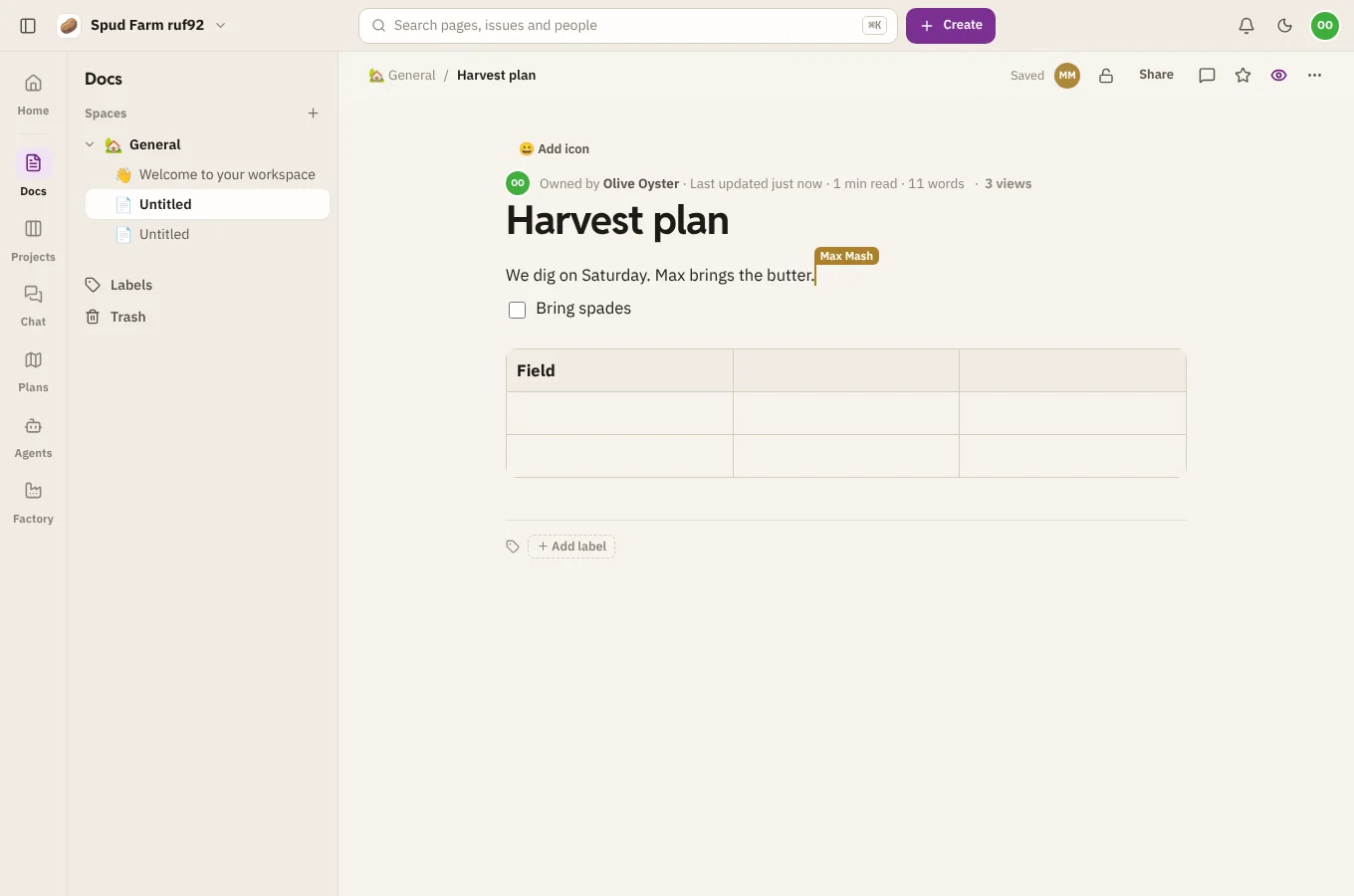
Pages in Docs are written together, live. Everyone on a page sees each other's cursors and changes as they happen, and every change is saved as you type.
The block menu
Type / at the start of a line (or anywhere) to open the block menu, then type to filter it and press ↵.
| Block | What it's for |
|---|---|
| Text, Heading 1, 2 and 3 | Paragraphs and section headings |
| Bulleted list, Numbered list | Lists, nested with Tab |
| Checklist | Tasks to tick off |
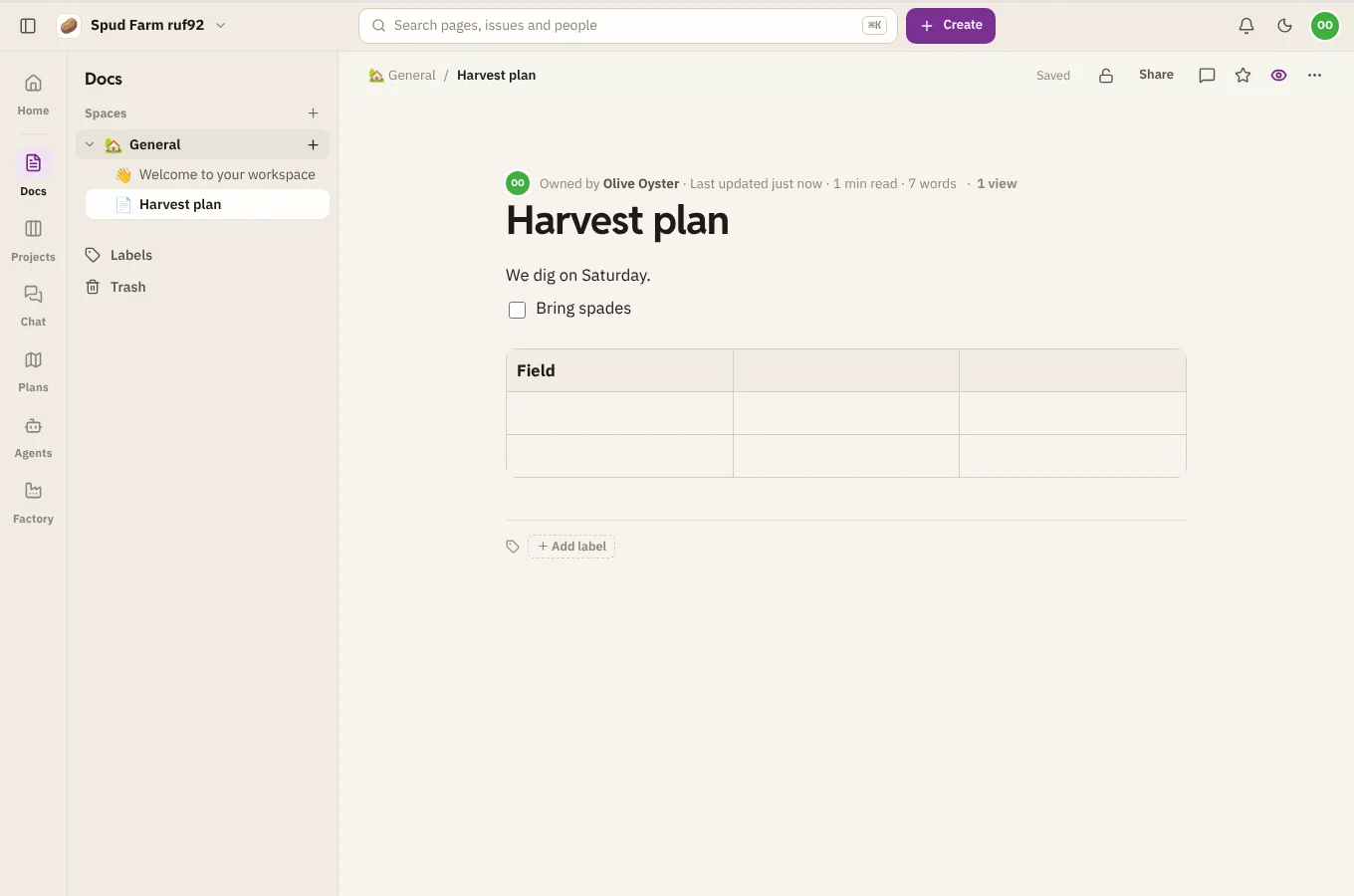
| Table | Rows and columns; add or remove them from the table's menu |
| Callout | A note that stands out, such as a tip or a warning |
| Quote, Code, Divider | A quotation, a block of code, a line between sections |
| Status | A coloured label, like DONE or AT RISK |
| Date | A day picked from a calendar |
| Mention | Tells a teammate about this page |
| Table of contents | The page's headings, kept up to date |
| Expand | A section that folds away |
| Issue from Projects, Issue list | Live issues from Projects |
| Include page | Another page's content, shown here |
| Page properties, Page properties report | Facts about a page, and a table gathering them |
| Pages by label | A live list of pages with a label |
| Image | Upload a picture |
The last few are live blocks: they show what's in SpudSuite now, not a copy.
Formatting
Select some text to see the formatting bar: bold, italic, strikethrough, code, highlight and links. Markdown shortcuts work as you type too:
| Type | To get |
|---|---|
#, ##, ### and a space |
A heading |
- or * and a space |
A bulleted list |
1. and a space |
A numbered list |
[ ] and a space |
A checklist item |
> and a space |
A quote |
``` |
A code block |
**bold**, *italic*, `code` |
Bold, italic, inline code |
Images and files
Paste an image, drag one onto the page, or choose Image from the block menu. Files can be up to 10 MB each (100 MB with Spud Pro).
Mentions and dates
Type @ and a name to mention a teammate. They hear about it in their inbox once, and only if they can see the page. Type /date to drop in a date picked from a calendar.
Working together
- Everyone on the page has a named, coloured cursor. Their avatars show at the top of the page.
- If you lose your connection, the page says Offline, will sync when back and keeps your changes. They merge in when you reconnect.
- If you're a viewer of the space, or the page is restricted, the page says View only.
The page's details
Under the title, the byline shows who owns the page, when it last changed and how many times it's been viewed. Choose the view count to see who has looked and when.