Projects
Sprints, estimates and reports
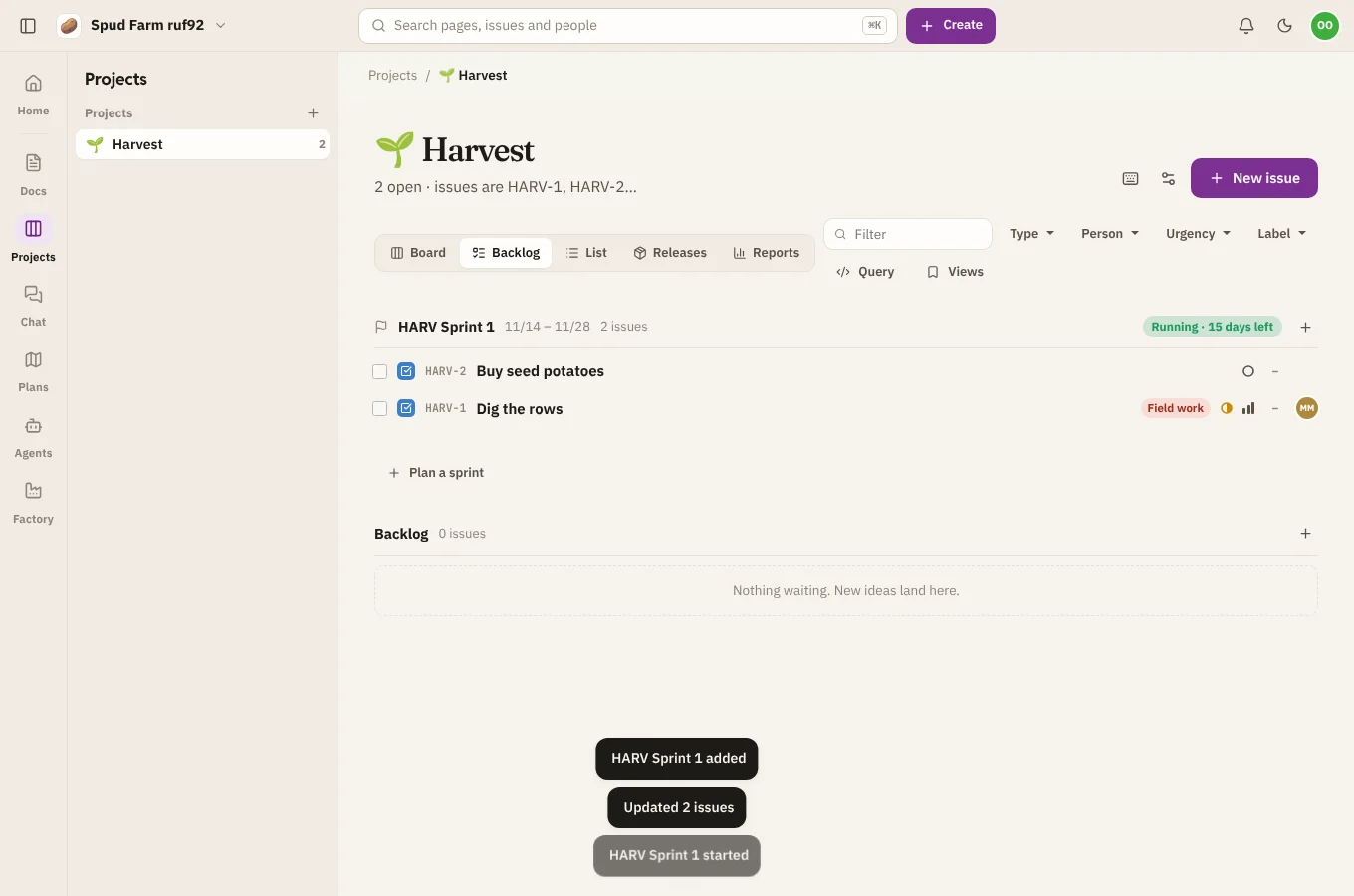
Sprints are short stretches of work, usually one or two weeks, that a team commits to together. Projects keeps them in the backlog and draws reports from how they went.
Plan a sprint
- Open the Backlog view.
- Choose Plan a sprint. A new sprint appears above the backlog.
- Drag issues from the backlog into it, or select issues in the list and choose Move to sprint.
Estimate
Give issues story points in their details to say how big they are. Each sprint shows its total points, so you can see when it's getting too full.
Start and complete a sprint
- Choose Start sprint when the team is ready. The board then shows the running sprint.
- Choose Complete sprint at the end. Pick where unfinished issues go: the backlog or the next sprint.
Only one sprint runs at a time in a project. Deleting a sprint sends its issues back to the backlog.
Reports
Open the Reports view (press 4). Every chart has a Table view with the numbers too.
| Report | What it shows |
|---|---|
| Burndown | Work left in the running sprint, day by day, against an ideal line. Scope added mid-sprint shows as a step up. |
| Velocity | Points committed and completed in each of the last eight sprints: a fair guide for planning the next one. |
| Created vs resolved | Issues opened and finished over 14, 30 or 90 days. If created keeps beating resolved, the pile is growing. |
| Cumulative flow | How many issues sat in each status each day. A band that keeps widening is where work is piling up. |
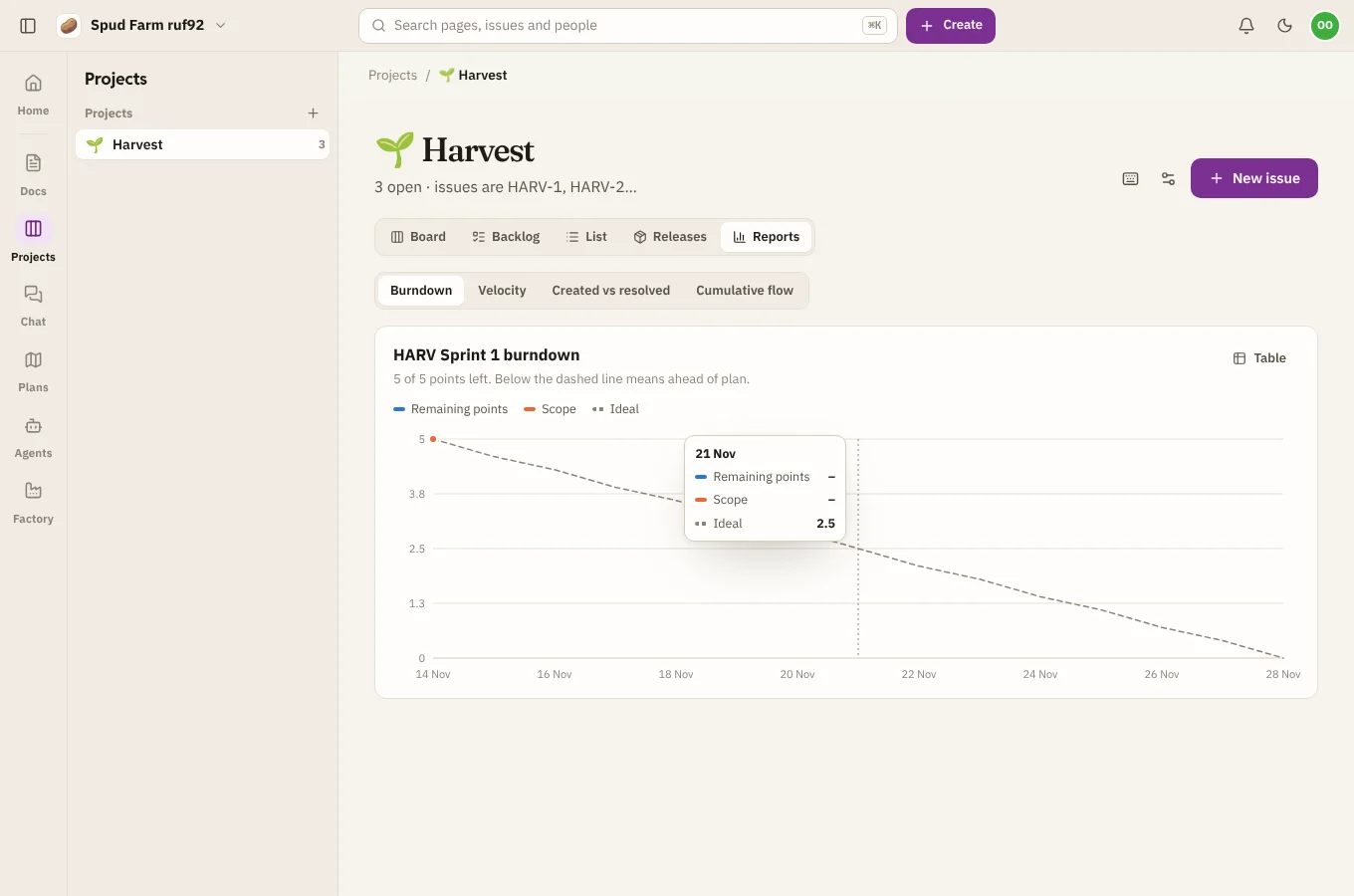
Reports are rebuilt from each issue's history, so they're right even for work done before you first opened them.