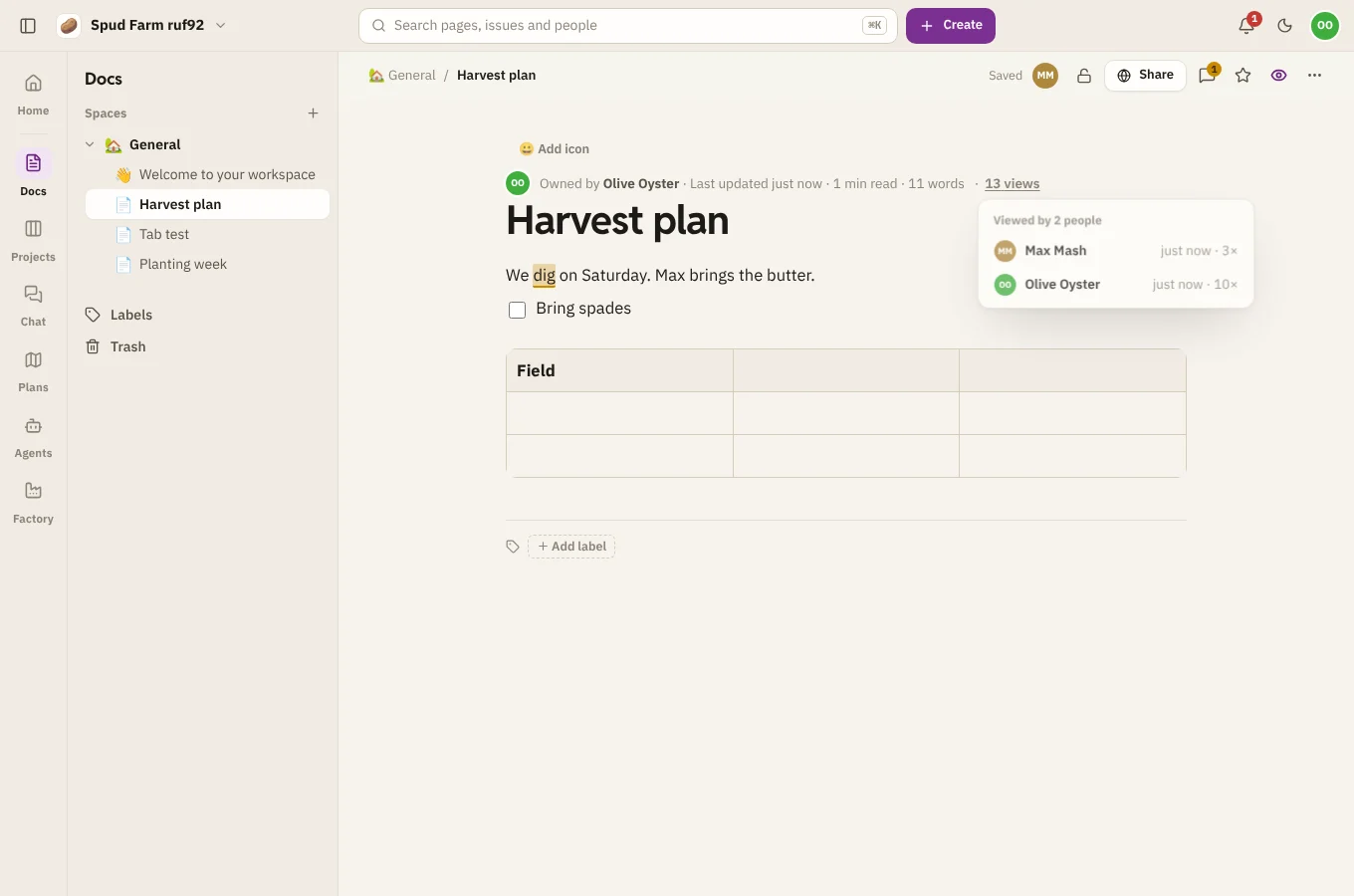
Docs
Sharing, restrictions and publishing
Every page is shared with its space by default. You can lock a page down to just a few people, publish it to the web for anyone to read, or take a copy away as Markdown, Word or PDF.
Share with teammates
Choose Share at the top of a page and Copy link for teammates. Anyone who can see the space can open it.
Restrict a page
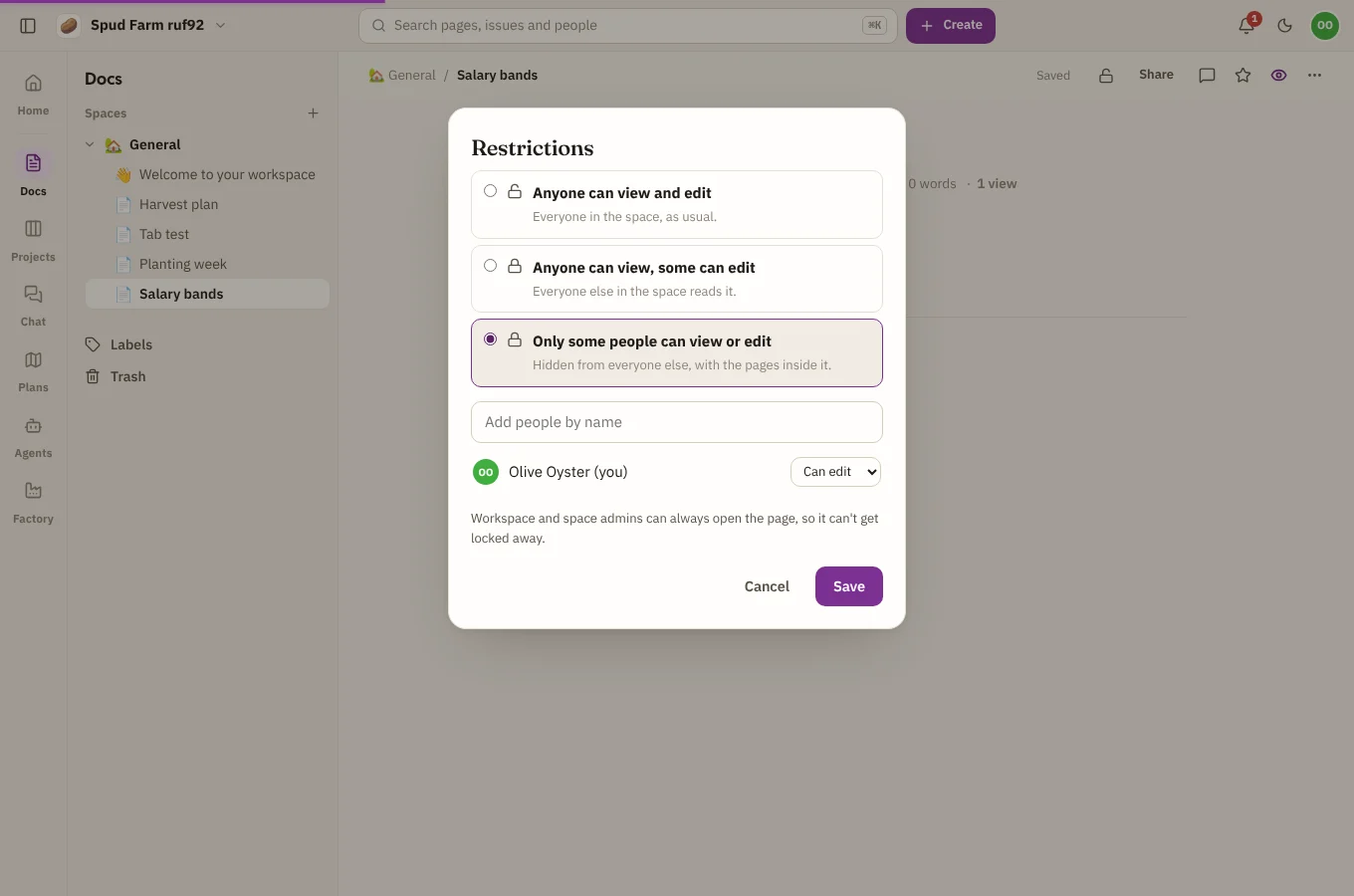
Choose Restrictions (the padlock) at the top of a page and pick who can see and edit it:
| Choice | What happens |
|---|---|
| Anyone can view and edit | The space's access, as usual |
| Anyone can view, some can edit | Everyone in the space reads it; only the people you list can edit it |
| Only some people can view or edit | Hidden from everyone else, along with every page inside it. Set each person to Can view or Can edit. |
A few things to know:
- Restrictions only narrow access. A viewer of the space stays a viewer, even on an edit list.
- A hidden page is hidden everywhere: the page tree, search, Home, the trash and notifications.
- Workspace owners and admins, and the space's admins, can always open a restricted page, so it can't be locked away from everyone. Whoever sets a restriction stays on its list.
- Anyone who can edit the page can change its restrictions.
Publish to the web
Choose Share and switch on Publish to the web to make a public link, then copy it. Anyone with the link can read the page without signing in, and it stays current as you edit. Switch it off again and the link stops working.
Download or print
From the page's ⋯ menu:
- Download as Markdown: plain text with formatting, for other tools.
- Download as Word: a .docx with the page's images.
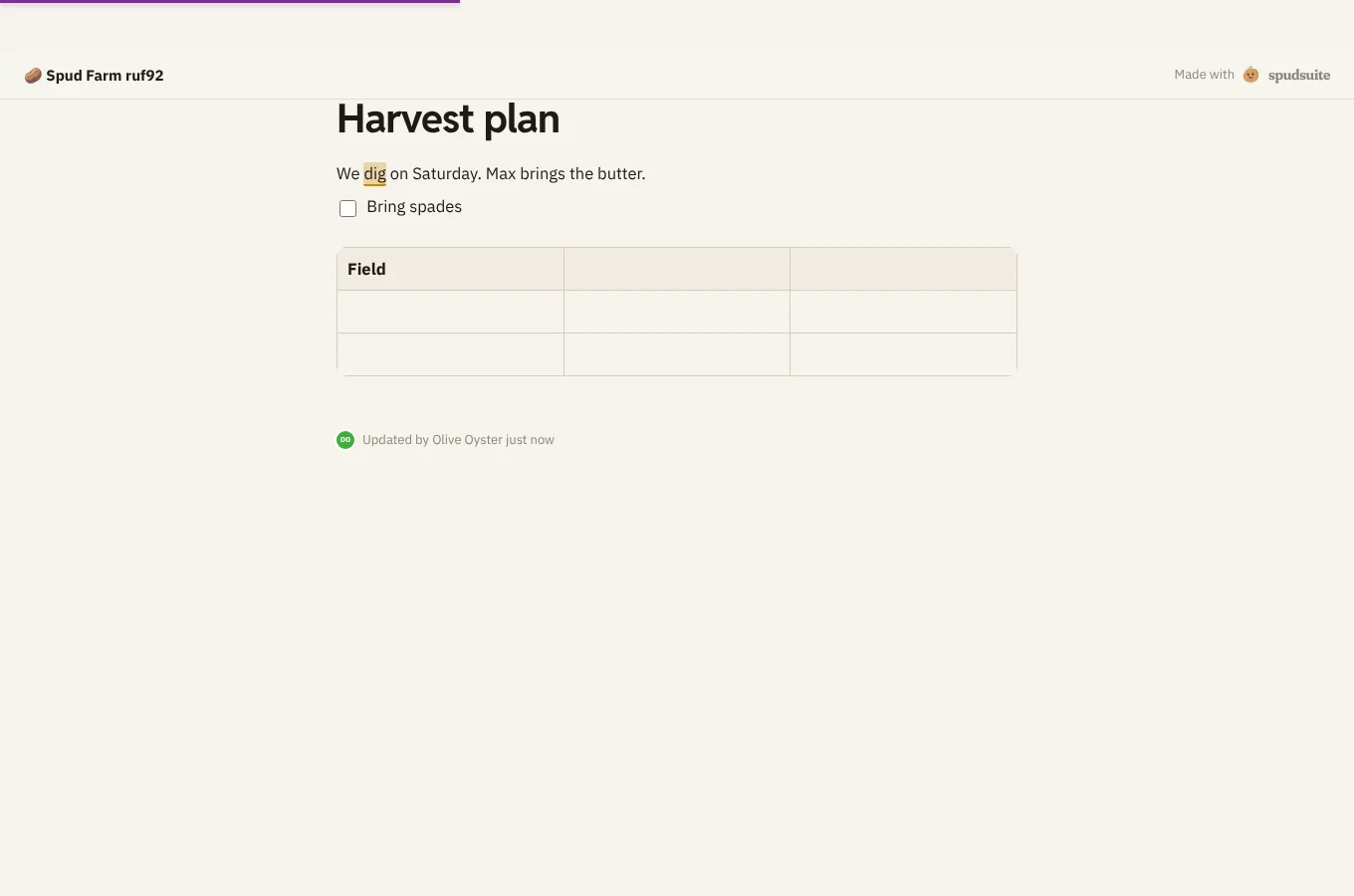
- Print or save as PDF: a clean print layout without SpudSuite around it.
See who has read it
The byline under the title shows how many times the page has been viewed. Choose it to see who has looked and when.