Projects
Importing from Jira
Bring your issues across from Jira with a CSV export. SpudSuite shows you a preview first, and importing the same file again only adds what's new.
Export from Jira
In Jira, search for the issues you want (for example, project = HARV), then choose Export › Export CSV (all fields). Keep each file under 5 MB; export in batches if you have a lot.
Import into a project
- Open the project in SpudSuite, choose Project settings (the sliders icon) and then Import.
- Choose the CSV file.
- Check the Import preview: each issue's Jira key, type, summary and the status it will have here. People are matched by email or name with the workspace's members. Anyone who isn't a member is listed, and their issues come in unassigned.
- Choose Import.
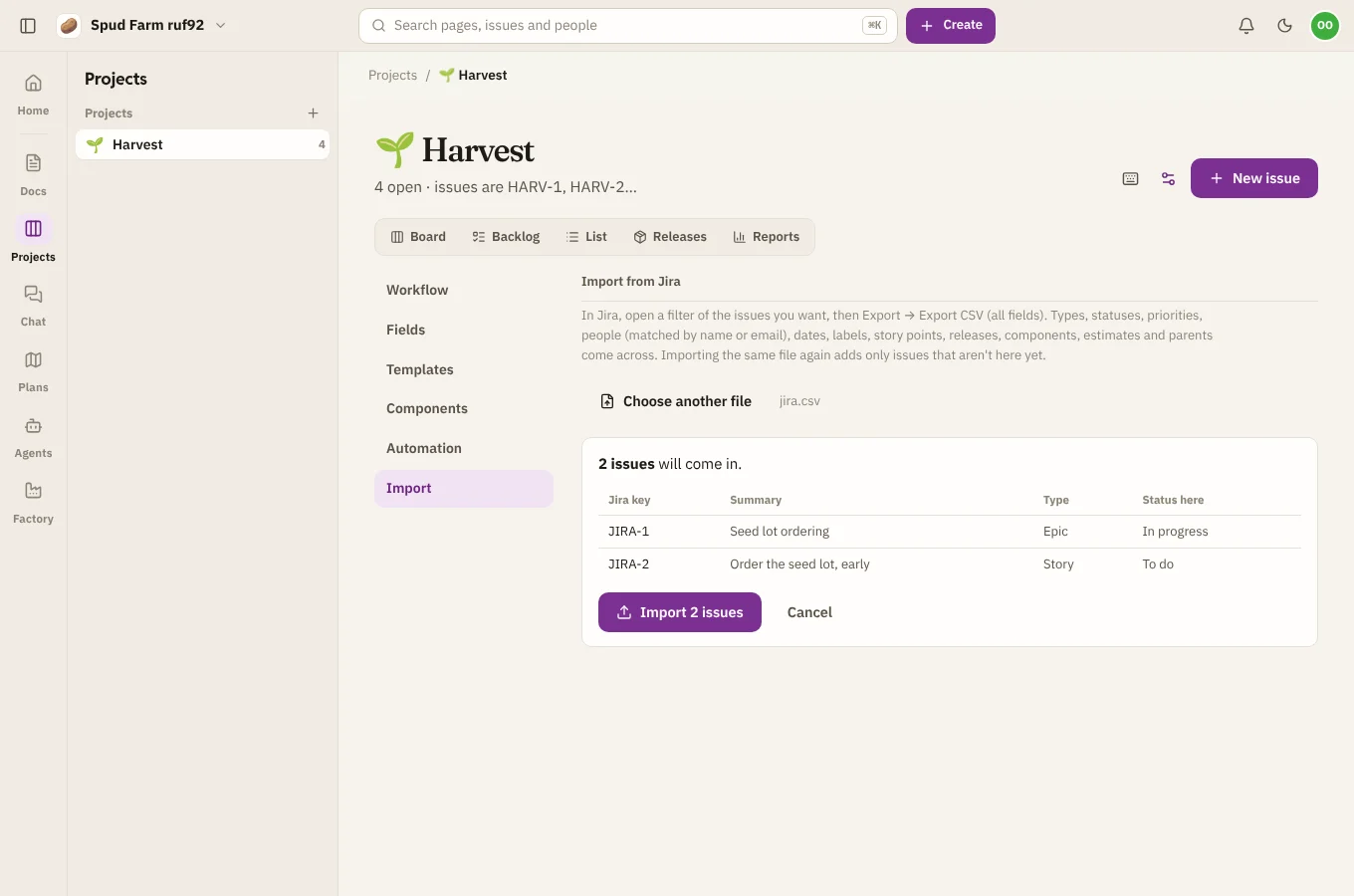
What comes across: types, statuses, priorities, assignees and reporters, created and due dates, labels, story points, fix versions (as releases), components, time estimates, descriptions and parent links (epics and sub-tasks), even when a parent is in a different import.
Only workspace members (not guests) can import.
Importing again
SpudSuite remembers the Jira key of everything it imported. Import an updated export and only issues it hasn't seen are added, so it's safe to import from the same Jira project more than once while you move over.