Docs
Spaces and pages
Docs keeps your team's pages in spaces: one for each team or topic, such as Engineering, Onboarding or Recipes. Inside a space, pages nest under each other like folders, so a big topic can have as many sub-pages as it needs.
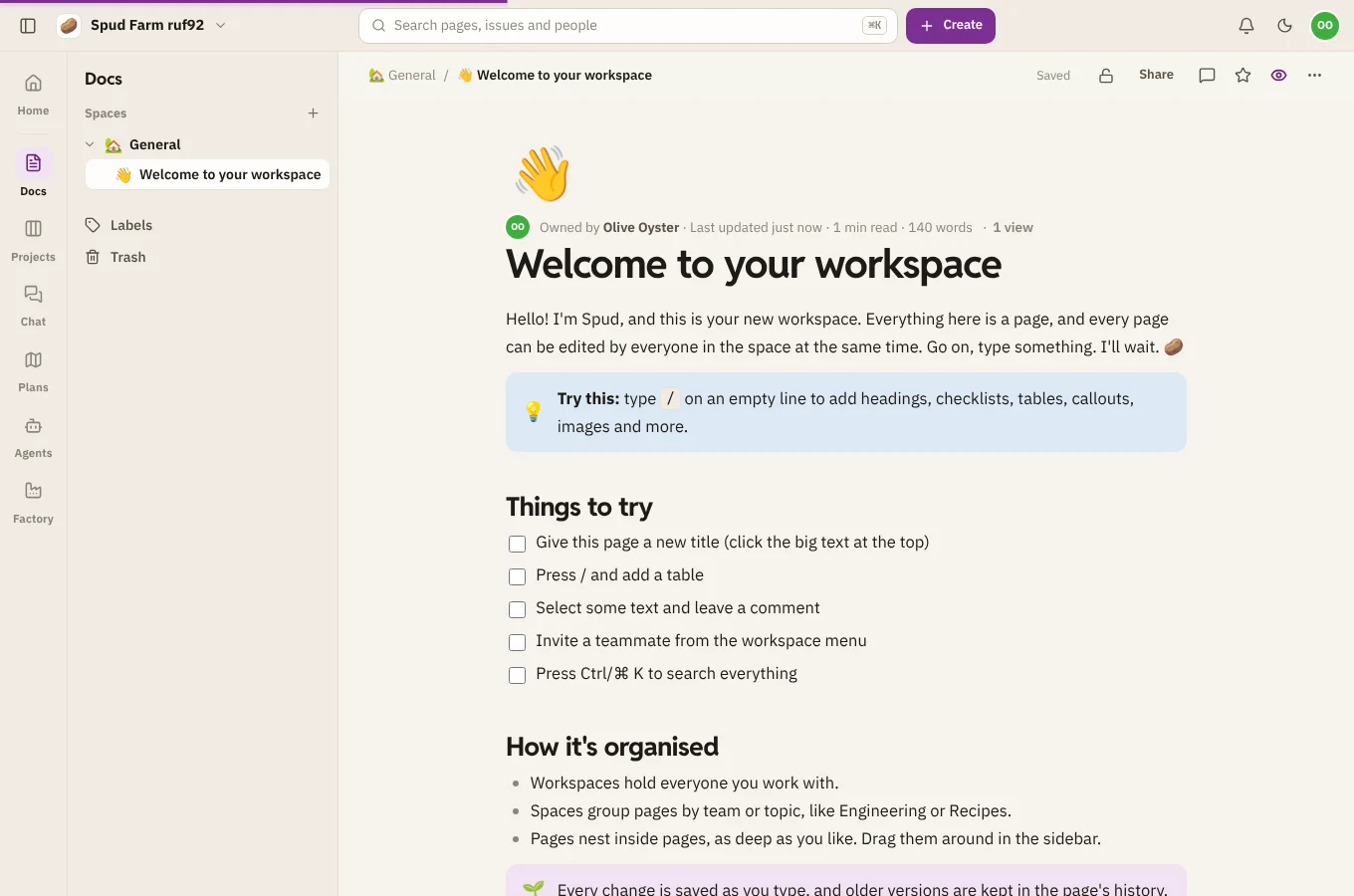
Spaces
Your workspace starts with one space, General. To make another, choose + next to Spaces in the sidebar, or Create › Space in the top bar. Give it a name, an icon and a line about what it's for, then pick who can see it:
- Open: everyone in the workspace can find it and join in. Guests only see it if you add them.
- Private: only people you add can see it, and its pages stay out of everyone else's search.
Open a space to see its home page, its blog (see Labels and space blogs) and what's changed in it recently. In a private space, the space's admins choose who's in it and what each person can do:
| Space role | What they can do |
|---|---|
| Admin | Edit everything, and manage the space's people |
| Editor | Write and edit pages |
| Viewer | Read pages and comment |
Workspace owners and admins can always see every space.
To hide a space you don't need from your sidebar, hover it and choose Hide. Watch space tells you about new pages, comments and edits in it.
Make a page
- Hover a space in the sidebar and choose + (New page in …).
- Hover a page and choose + (Add a page inside) to make a sub-page.
- Choose Create › Page in the top bar, or New page on Home.
A new page opens with the cursor in its title. Press ↵ or Tab to move into the body and start writing. There's no save button: everything saves as you type. See Writing pages.
Start from a template
On Home, choose Start from a template for a page that's already laid out: Meeting notes, Project brief, Decision record, Retrospective, How-to guide or Weekly update.
Organise pages
- Drag a page in the sidebar to reorder it, or drop it onto another page to put it inside.
- Move to… in a page's ⋯ menu moves it, with everything inside it, to another space.
- Duplicate makes a copy next to it.
- Star a page (the star at the top of the page) to keep it under Starred in your sidebar.
- Give a page an icon with Add icon above its title.
- Full width in the ⋯ menu lets a wide page, such as one with big tables, use the whole screen.
Delete a page
Choose Move to trash in the page's ⋯ menu. Pages inside it go too. Changed your mind? Choose Undo on the notice, or restore it from the trash later: see History and the trash.